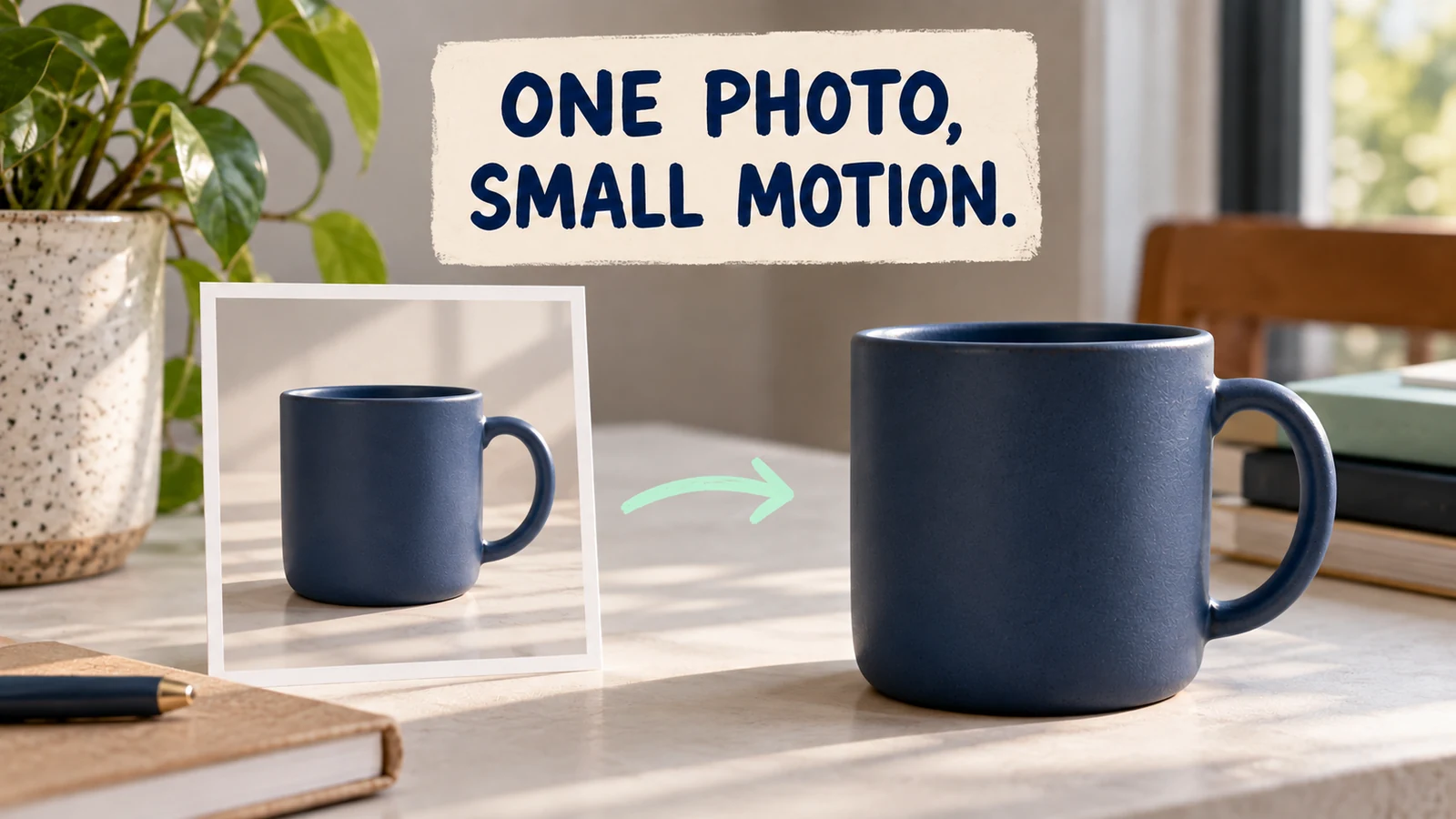
For a product clip, begin with one approved photo and one modest camera move. Grok image to video should add motion without turning a mug handle into a different shape or making a label drift. If the product is already inaccurate in the starting image, fix that source before generating movement.
This is an official-documentation workflow guide, not a claim that Usable Visuals tested a particular Grok model or measured its success rate. The mug illustrations are motion plans and inspection references, not actual video frames. Use the linked official demonstrations to see the vendor's examples, then judge your own exported clip separately.
Understand What the Source Image Controls
The embedded clip below is an official xAI motion demonstration from its Imagine Video announcement. It illustrates the vendor's example, not a product-preservation test conducted for this article. Playback requires an internet connection.
xAI's image-to-video documentation describes using an image as a starting point with a prompt for movement. Its Imagine Video announcement also links the consumer Imagine experience and shows official demonstrations. Consumer controls and API settings are not identical, so verify the options in the route you use.
The photograph already establishes the product, viewpoint, background, and light. Repeating a long product description can distract from the motion decision. Start by describing what should move and what should remain stable.
For a blue mug on a table, a small forward camera move can be enough to create visual interest. Asking for a full orbit requires the model to invent unseen sides and relationships. That is a different task with more details to verify.
My priority is a clip that still represents the photographed product at every usable moment, not the largest possible movement from one source.
Choose a Photo That Can Support the Move
Use an image with a clear outline, readable branding if present, and some room around the object. A handle pressed against the crop edge gives the model little margin for a lateral move or reframing.
Check the surface and background before uploading. A bent tabletop, noisy label, or oddly shaped handle can become more distracting once motion makes it visible across several frames. Do not expect animation to repair a flawed still automatically.
For a vertical product video, prepare a composition suitable for that format when possible. A wide source cropped tightly to vertical may remove the handle or leave no room for later text. Keep the product and copy area in mind before paying for a generation.
Save the source as the reference for the whole experiment. If you later change it, record that change; otherwise it becomes difficult to tell whether a new result improved because of the image or the prompt.
Separate a composition problem from a generation problem. If the handle is already cut off, use a better source or revise the layout first. If the photograph is clear but the handle narrows during movement, reduce the requested viewpoint change. These diagnoses lead to different next attempts and avoid spending credits on an input that cannot satisfy the brief.
Start With a Single Grok Image-to-Video Prompt
Use a short movement brief such as:
The camera makes a very slow, short push toward the mug. The mug stays stationary on the table. Lighting remains steady, and the full handle stays in frame.
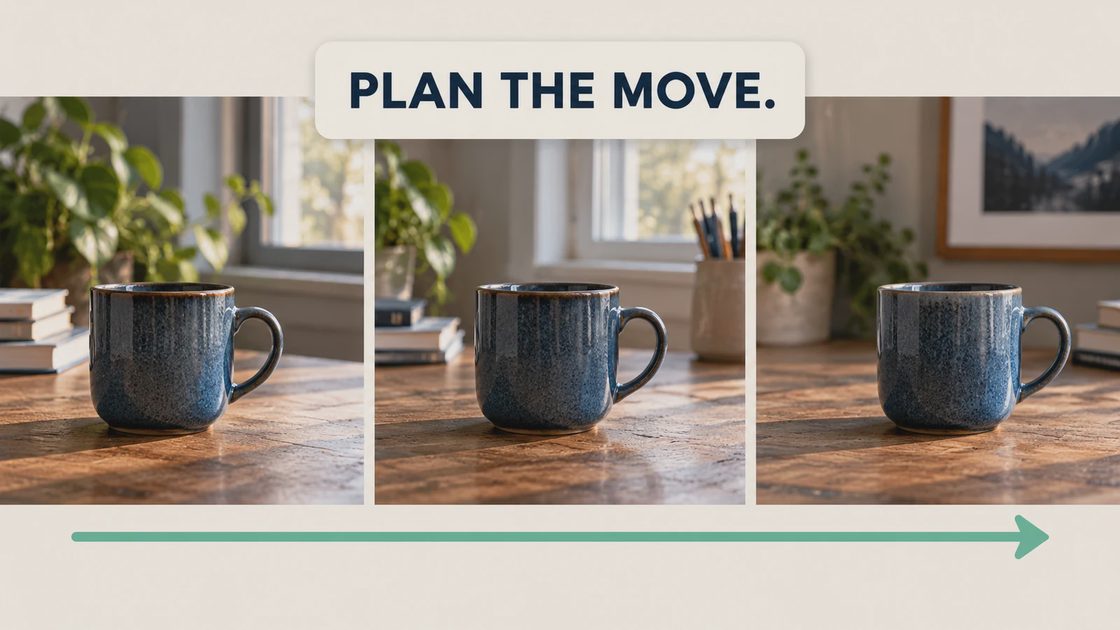
This is a prompt to try, not a tested guarantee. It establishes camera movement, subject stability, and a framing condition without requesting a new scene.
For Grok subtle camera movement, keep the action modest enough that you can judge it. “Cinematic” alone does not specify direction, speed, or how far the view should travel. A simple move is easier to revise than several competing actions.
Avoid combining a push-in, orbit, rotating product, drifting props, and changing light on the first attempt. If the clip fails, you will not know which demand caused the unwanted behavior.
Set the Generation Options You Can Verify
Open the Grok Imagine route you intend to use and confirm that it accepts an uploaded image for video generation. Select the available duration, quality, and aspect ratio that fit the brief, and check any shown charge or usage limit before generating.
The API documentation is useful evidence for image-to-video capability, but it does not prove that your consumer account exposes every parameter or model. If an option is absent, use the account's supported route rather than assuming a hidden setting exists.
For a first Grok product video, choose a short experiment that can answer a specific question: can this source support a stable move while retaining the handle and rim? Do not generate a long campaign sequence before confirming that basic result.
Record the actual mode or model name, settings, prompt, and generation outcome. Those notes make later changes interpretable and keep a tutorial from depending on an interface that may change.
Do not transfer an API price, quota, or parameter directly into a consumer-account budget. Confirm the charge in the route where you will generate. If you cannot identify the model behind an account option, record its displayed name instead of assigning a more impressive model label.
Review Movement Before Adding Music or Copy
Watch the entire clip at normal speed first. Then scrub through the frames where the product changes most visibly. A still thumbnail cannot establish whether the motion is natural or the object remains consistent.
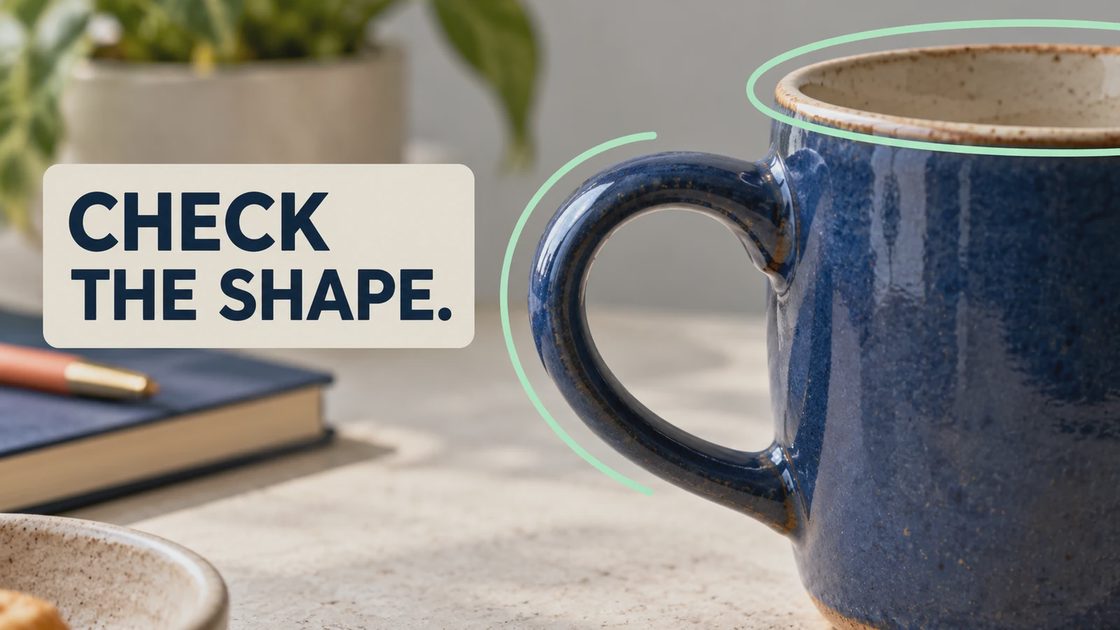
Check | Acceptable direction | Reason to revise |
|---|---|---|
Handle | Keeps its attachment and overall shape | Stretches, merges, or changes thickness |
Rim | Remains a consistent surface | Bends or opens differently during the move |
Label, if present | Stays accurate and readable enough for the use | Letters drift or become invented symbols |
Contact | Mug stays grounded on the table | Slides, floats, or changes base contact |
Camera | One coherent, restrained move | Unexpected orbit, zoom jump, or reversal |
Grok image-to-video product distortion is not a problem that a title card can solve. Trim a damaged segment only if the remaining clip is genuinely usable and still meets the brief. Do not conceal the only product-revealing moment behind oversized text.
Make the Next Request Smaller and More Specific
If the camera move is too strong, shorten or slow the requested motion. If the mug rotates when you wanted the camera to move, state that the mug remains stationary and remove language that suggests a turntable.
If the handle changes shape, return to the approved photo and reduce the demand on unseen geometry. A locked camera or a very small push may fit the source better than a lateral move. More negative instructions cannot guarantee that the model reconstructs hidden surfaces correctly.
Change one important variable at a time and keep the rejected output. Useful notes describe the visible problem, such as “handle narrows midway,” rather than simply “bad result.”
To animate a product photo with Grok, treat the first generation as a test of the source and motion combination. It is not an automatic commitment to keep that output or to spend more until the same ambitious move works.
Keep Finishing Work Separate From Generation
Add exact prices, captions, logos, and calls to action in an editor after you approve the footage. Editable text can be revised without asking the model to rebuild the product or spell the campaign message inside every frame.
For Grok videos intended for a shop, approve the pictured item before adding an offer.
Check sound separately. If your generated clip contains audio, decide whether it belongs in the final asset; do not assume that it is silent or that every generated sound supports the product story. Review your planned music and other assets under their actual usage conditions.
For the Grok image-to-video export, inspect the downloaded file outside the platform. Confirm duration, aspect ratio, dimensions, audio, and whether it imports into the finishing editor. Check the first and last usable frames as well as the middle.
Stop When the Still Photo Is the Better Asset
A clean still with a restrained editorial crop can be more useful than an unstable generated product clip. If the product repeatedly changes and the campaign does not require new motion, use the photograph or capture real footage instead.
Save the approved source, prompt, chosen output, and actual attempt count. Before your next generation, name one motion and two product details that must remain stable. That small brief gives the result a clear test to pass.